Monday, March 18, 2013

Powershell Script : Create An Encrypted Folder using Powershell.

Hi,

Windows Encryption is one of the best inbuilt security tool in windows7. My and my friends use windows encrypted file systems (EFS) a lot and may be you are using EFS in your windows environment.

Rather that create a whole DISK, My Documents, Desktop encrypted, I always prefer to create an encrypted folder somewhere on the disk and then put the files which you want to be encrypted in that encrypted folder.

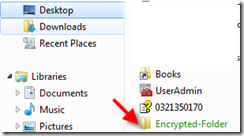
I have written a small Powershell Script which created a encryption enabled folder on your desktop with folder name “Encrypted-Folder”.

You can download the script from this link http://gallery.technet.microsoft.com/scriptcenter/Create-Encrypted-Folder-6f0fe0c9

Script Logic
I have created a small flow charts on how this script works.
Encryption Script Sample
How it works.
  1. This script check for folder name “Encrypted-Folder” on your Desktop.
  2. If the Folder Exists.
    1. then it check if the attributes of the “Encrypted-Folder” is contains encrypted.
      1. If the Folder Attributes on “Encrypted-Folder”  contains “Encrypted”
      2. Then it won’t do anything.
      3. but
      4. If the Folder attributes doesn’t contains “Encrypted-Folder” 
      5. then
      6. it runs “cipher /e” command to make folder encrypted
  3. If the folder Does not exists,
    1. then this create a new folder “Encrypted-Folder”  on your desktop
    2. and encrypt it.
In this script i am using “cipher /e” to enable encryption. I have tested this script on windows7 and windows8 and it is working fine for me.
Screenshots.
18-03-2013 15-55-02
18-03-2013 16-15-19
18-03-2013 16-16-04

You can download the script from this link http://gallery.technet.microsoft.com/scriptcenter/Create-Encrypted-Folder-6f0fe0c9

That’s all for now.
Thanks
Aman Dhally
clip_image001 clip_image002 clip_image003 clip_image005clip_image007

Tuesday, February 12, 2013

I have one of the top 10% most viewed LinkedIn profiles

Hi,

I don’t know what its means exactly but it gives a feel good factor Smile .

12-02-2013 10-43-11


Thanks
Aman Dhally
clip_image001 clip_image002 clip_image003 clip_image005clip_image007

Wednesday, February 6, 2013

What’s New in Windows PowerShell ISE 3.0


Hi, Microsoft has added lots of new feature in “Windows PowerShell ISE 3.0” . If you are “Powershell ISE” lover then you should try this new version of “Powershell ISE”. I am using windows8 and it has “Powershell V3” and “Powershell ISE v3” installed by default.

So what's new ? in New PowerShell ISE 3.0?

  It has the main feature which was lacking in ISE Version 2
  1. Intellisense.
      • 06-02-2013 12-50-03
      • 06-02-2013 12-45-52
  2. We can use and Insert Snippetstoo.
      • 06-02-2013 12-47-17
      • 06-02-2013 12-47-34
  3. Commands tab
    • In command tab, we can see List of all modules available. we can search for specific cmdlets.We can build command right on the Commands tab and directly run from there or insert to the script pane.
    • 06-02-2013 12-51-30
  4. Update Powershell Help
    • Now we can “Update Powershell Help” using Powershell ISE 3.0, it is very simple.
    • Click on “help” and click on “Update Windows PowerShell Help” {it run update-help cmdlet actually }
    • 06-02-2013 12-54-39
    • and it will start updating all Powershell Help files.
    • 06-02-2013 12-55-29
  5. New Menu bar Items
    • Microsoft had added two new menu bar items.
      • Tools
      • Add-ons
  6. Themes
    • Now we have a option of customise how our Script pane and Console pane look like.
    • PowerISE 3.0 has 6 inbuilt themses
      • click on Tools
      • Click on Options
      • 06-02-2013 13-03-59
      • Now you can see that default theme “Dark console, Light Editor” is selected.
      • to change the theme , click on “Manage Themes”
      • and select the theme which you want to apply and click on OK
      • 06-02-2013 13-16-19
      • and click on APPLY
      • and now everything will be look like “Matrix movie” Winking smile
      • 06-02-2013 13-17-26
That’s all for now Smile  
Thanks
Aman Dhally
clip_image001 clip_image002 clip_image003 clip_image005clip_image007

Tuesday, February 5, 2013

PowerShell Script for : RSA SecurID Software Token Converter

Hi,

If if RSA SecureID is deployed on your environment to use VPN securely , then i am sure that you are managing “Software Tokens” too.

Software token are RSA App which are installed on your mobile devices like iPhone,iPad, Android,or Blackberry phones and by installing them ,you don’t need to carry RSA SecureID hardware keys every time with you.

RSA Hardware key   RSA Application
1010053834  EMC_Image_C_1300591192404_9000-Passcode30s8d
When you configure software token on RSA Console for a a users it download as zip file and when you extract them it contains a .sdtid  file.

If you are deploying Token on Blackberry Device we just need to add x-rimdevice- in the front of the .sdtid file and need to send to the user on his email id.

but.!!!!!!!!!!!!

in case you are if you want to deploy to a iPhone or Android phone then we need to run below command and this create a txt file contain a URL for activation.

TokenConverter <path to stdid file> -mobile –p <username (or other password)> -o <output file>
 
You need to download token convertor software from here : http://www.emc.com/security/rsa-securid/rsa-securid-software-authenticators/converter.htm

Now what?

So whenever you need to convert this .stdid to activation link, you have to go to TokenConvertor folder and then do and provide all details manually, and in case you forget the switch you have to type everything again. This happen with me all the time. so to solve it i have written a TINY MINY
 Powershell script:

Download link :
http://gallery.technet.microsoft.com/scriptcenter/RSA-SecurID-Software-Token-4f05f792

What it does,?

It create the activation link and we just need to provide the full path to .sdtid file and the password.

How it works?
  • Download your Sotware_token zip file and extract it.
  • 01-02-2013 12-46-25 (1)
  • Copy the full path of the .sdtid file.
  • 01-02-2013 12-47-14
  • Now run the script
  • it asks you for full file path, paste the path which we copied before
  • 01-02-2013 12-48-11
  • click on OK
  • Now it ask you to provide the password , which you provided using assigning and distributing Software token on RSA Console and click on “OK.”
  • 01-02-2013 12-50-04 (1)
  • and it will open a text file containing the Activation link.
  • 01-02-2013 12-51-46
  • That’s all !
Download link :
http://gallery.technet.microsoft.com/scriptcenter/RSA-SecurID-Software-Token-4f05f792

Thanks
Aman Dhally

clip_image001 clip_image002 clip_image003 clip_image005 clip_image007

Wednesday, January 30, 2013

Where is my Windows PowerShell Integrated Scripting Environment (ISE) on Windows8.

Hi,
Two days back i finally upgraded my laptop to “Windowd8 Pro”. After clean installation of the Windows8 Operating system my first expression was “WOW!”. I like it. Windows8 Operating System really looks very cool.
After installation the first program i run was “Powershell”. Microsoft had added a lots of new cmdlets on the new version on PowerShell v3. Microsoft is shipping Windowd8 with New Windows PowerShell Integrated Scripting Environment (ISE) and this new  “Powershell ISE” contain a lots of new features.
Where is my Windows PowerShell Integrated Scripting Environment (ISE) is on Windows 8???????
After the installation of windows8 pro, i was not able to find “Powershell ISE” anywhere,
30-01-2013 10-43-12
i searched and found it under,
  • Press the “windows Key” or click on “Start” 30-01-2013 10-36-39
  • Now Move you Mouse on the Top “right “ of the corner of the screen , you that the “Right hand side” option bar comes and click on Settings.
  • 30-01-2013 10-39-07
  • Now click on”tile”
  • 30-01-2013 10-40-31
  • Change the “Show administrative tool” button from “No” to “yes”
  • 30-01-2013 10-41-49
  • and here it is our “Powershell ISE”
  • 30-01-2013 10-44-37
Lets Pin Windows PowerShell Integrated Scripting Environment (ISE)  to our taskbar so that we can access it easily.
  • Right Click on “windows Powershell ISE.
  • In the bottom you can see the “Pin to taskbar” Icon, Click on it,
  • 30-01-2013 10-45-30
  • Now we have “Powershell ISE” on our taskbar.
  • 30-01-2013 11-06-58

Thanks
Aman Dhally

clip_image001 clip_image002 clip_image003 clip_image005 clip_image007