Showing posts with label Get-ChildItem. Show all posts

Wednesday, March 20, 2013

Powershell Script: Export EFS Certificates using Powershell.

Hi,
In my previous Article i post about how to create encrypted folder using powershell script. In encryption the most important thing is the backup of encryption certificate. We can export and save encryption certificate manually from control panel , using MMC and Certificate Snap-in or using cipher.exe.
But as we all love to use scripts , we can use a powershell scrip to export efs security certificate.

Download Link : http://gallery.technet.microsoft.com/scriptcenter/Export-EFS-Certificates-8ec8ba74

You can download the script and run it, this script will export the EFS Security Certificate to your “My Document” or “Document Folder”.
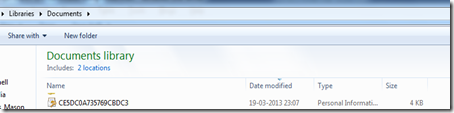
20-03-2013 00-04-05
I did not write this script, i have found it somewhere on the internet and lost is original source, and i also tweaked this script according to my need.

Download Link  :http://gallery.technet.microsoft.com/scriptcenter/Export-EFS-Certificates-8ec8ba74

Thanks
Aman Dhally
clip_image001 clip_image002 clip_image003 clip_image005clip_image007

Thursday, September 13, 2012

Find Folders Using PowerShell

lHi,
I my previous post i wrote about “How to search for files using Powershell” .
In this post i am writing about “How to search folders” in Powershell.
The logic and command are almost same ,the only difference is in Files we were using
$_.PSIsContainer -eq $false

and for searching Folders we need to use

$_.PSIsContainer -eq $true

Simple Smile 


You can download the script from this link :

Download Link : http://gallery.technet.microsoft.com/scriptcenter/Search-and-Find-Folders-af9c86ad

13-09-2012 11-50-20


Thanks
Aman Dhally
join aman on facebook Join aman on Linkedin follow aman on Twitter

Find Files Using Powershell.

Hi,
This seems a easy Topic, but as you know in my articles i always tries to cover tasks rather then techniques.  The main benefits of these kind of articles is they help in quick learning.

The more you use the more you learn.

Today i was looking for some files  and when i open Windows Search and see that few of my Drives are not indexed by windows Search, and it is taking a time to give the results.

And at that time i think , lets try to use Powershell to search for a file. 

and i used the below command to achieve my target.

Get-ChildItem -Recurse d:\ | Where-Object { ($_.PSIsContainer -eq $false) -and ( $_.Name -like "*Active*" )}

13-09-2012 12-25-55
In Above Command . Using Get-ChildItem -Recurse i am searching for all folders and subfolders in D Drive and then we are piping the output to Where-Object Cmdlet and we are we are defining two conditions here. one the PSIsContainer should be $false that means this should be a file and after that we are defining the name of the  File which we want to search,

I converted the above in to the script,  you can download the script from below link.

Download Link : https://dl.dropbox.com/u/17858935/Find_Files_Using_Powershell.zip

In this script i added read-host , so when you runt he script it ask you for FILE path to search and the File name to search and after that i will give you the result.

13-09-2012 11-50-44

Download Link : https://dl.dropbox.com/u/17858935/Find_Files_Using_Powershell.zip
Thanks
Aman Dhally
join aman on facebook Join aman on Linkedin follow aman on Twitter

Tuesday, February 14, 2012

Delete Offline OST files from login users account using PowerShell.


Hi,

Yesterday I was surfing the TECHNET Script repository and see that one user is requested for a script which can delete offline email file {ost} from login users.

This seems simple to me and I wrote a 3line script which can accomplish this task.


1.  $OstPath = $Env:LocalAppData + "\Microsoft" + "\Outlook"
2.  $ost = get-ChildItem $OstPath | where { $_.Extension -eq ".ost"} 
3.  $ost | remove-Item -WhatIf ## remove -whatif to remove the files 

1.    In windows7 and with outlook 2010 installed the OST file are created in “C:\Users\USERNAME\AppData\Local\Microsoft\Outlook” folder. The $Env:LocalAppData windows environment variable contain the path of “C:\Users\aman.dhally\AppData\Local” and we added “\Microsoft” and “\Outlook” to make the complete path to the outlook folder.
2.    Secondly we are getting all files whose extension is equal .OST and saving the result in to the $ost variable
3.    Thirdly we are parsing the output of $ost to remove-Item to remove all files.

Screenshots:

Below is the path of my OST files.

14-02-2012 12-08-29 

See the default value of  $Env:LocalAppData data and the output of $OstPath when we added "Microsoft" and "Outlook" in to it.

14-02-2012 12-11-07
$ost = get-ChildItem $OstPath | where { $_.Extension -eq ".ost"}  , and just see the output of $ost you can see that is is showing the name of all OST which we have in out outlook folder.

14-02-2012 12-13-31
$ost | remove-Item -WhatIf
and this will remove the OST files :)
14-02-2012 12-15-16


Simple isn't:)


Note: I tested this script on Windows7 with Outlook 2010 installed.

Thanks
Aman Dhally

Wednesday, January 25, 2012

Script to reset “Hidden files and folders” to normal using PowerShell


Hi,

yesterday one of my users laptop get infected with virus. After removal of virus i saw that “Virus” hide every file and folder in the laptop.  It was quite a pain to “Choose file and folder” right click on it, choose properties and un-tick the hidden option.

Then i decide to write a script which can do this for me.

Download it from here : http://gallery.technet.microsoft.com/scriptcenter/Reset-Hidden-files-and-27d70766
so here is the script:
## Change "D:\P-temp" with your folder path
$Filepath = Get-ChildItem -Recurse -path "D:\P-Temp\" -Force 
$HSfiles = $Filepath | where { $_.Attributes -match "Hidden"}
$HSfiles
foreach ( $Object in $HSfiles ) {
       $Object.Attributes = "Archive"
       }
### End of script #####
This script search for “Hidden file and folder” in the path you defined in $Filepath and the it sets the “Archive” attribute on every file and folder it found.

Screen Shots:

You can see that the i highlighted the “hidden” files and folder below.

25-01-2012 17-05-46

we run the Script  and it done something ;-)

25-01-2012 18-15-42

You can see that , all hidden folder are back to normal. :)

25-01-2012 17-06-33

Download it from here : http://gallery.technet.microsoft.com/scriptcenter/Reset-Hidden-files-and-27d70766

Thanks for viewing .
Aman Dhally
messenger_freak_adp1 (8)

How to find Hidden files and Folders using PowerShell.


Hi,

In Old days when we need to saw the hidden files we used Dir /a command to view them. If you don't know let me show you the example

first we run a simple Dir *. command to show the us the list of folders are it is showing only 11 Directories.

Secondly we run the Dir *. /a command and it showing us 18 Directories , which means we have 7 hidden directories.

25-01-2012 17-20-45

how we can access the same information using PowerShell? it’s very easy just use the Get-ChildItem Cmdlet.

first Run Get-ChildItem only and we can see that it is showing  only few directories.

25-01-2012 17-26-59

OK Now run the Get-ChildItem with –Force Switch.

and you can see now we have more directories listed here. You can notice in the front of some directories the Mode is “h” {green arrow} ,which means the attribute for these directories is set to hidden.

25-01-2012 17-31-48 

or the other way to see the the Hidden files are folder in current folder is to run this command line.

Get-ChildItem  -Force | where { $_.Attributes -match "Hidden"}

this will show you only “Hidden” files and folders.

25-01-2012 17-41-00 

Thanks for reading.,..

Aman Dhally

messenger_freak_adp1 (30)

Friday, November 25, 2011

“Find how many types of files you have in you laptop” using Powershell.


Hi

Today i was searching for one PDF file on my laptop and then I just thinks “How Many PDF files do i have?”, i have no idea, one way to find is go to windows search and find all .PDF files? but “how can i find this with powershell”

we can

let try it ..

Cmdlet Used: Get-ChildItem,Group-Object, Sort-Object

Command: $files =  Get-ChildItem -Path C:\Users\aman.dhally\Documents –Recurse

In $files variable i am saving the result of Get-ChildItem -Path C:\Users\aman.dhally\Documents –Recurse  command , Get-ChildItem in equal as DIR command and we are using –Path switch parameter to give the path of the folder in which we want to search for files, –Recurse means including sub folders.

File

lets run $files variable and see what it has stored

It showing the files and folders located in my “Document” folder

File_2

let filer the results

$files | Group-Object -Property Extension | Sort-Object Count –Descending

now pipe the $files variable to Group-Object cmdlet and the grouping Property is Extensions because we want to group files by there extensions, now piped the command to Sort-Object and we are sorting the results by Count,

OoPs 751 .torrent files,, going to delete them . )

File_3 

Thanks

aman dhally