Showing posts with label foreach. Show all posts

Wednesday, March 20, 2013

Powershell Script: Export EFS Certificates using Powershell.

Hi,
In my previous Article i post about how to create encrypted folder using powershell script. In encryption the most important thing is the backup of encryption certificate. We can export and save encryption certificate manually from control panel , using MMC and Certificate Snap-in or using cipher.exe.
But as we all love to use scripts , we can use a powershell scrip to export efs security certificate.

Download Link : http://gallery.technet.microsoft.com/scriptcenter/Export-EFS-Certificates-8ec8ba74

You can download the script and run it, this script will export the EFS Security Certificate to your “My Document” or “Document Folder”.
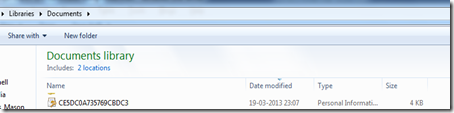
20-03-2013 00-04-05
I did not write this script, i have found it somewhere on the internet and lost is original source, and i also tweaked this script according to my need.

Download Link  :http://gallery.technet.microsoft.com/scriptcenter/Export-EFS-Certificates-8ec8ba74

Thanks
Aman Dhally
clip_image001 clip_image002 clip_image003 clip_image005clip_image007

Friday, July 6, 2012

Test Connectivity of Multiple Server and then do "Trace Route" on failed servers using powershell script.


Hi,

Yesterday one of our "New Delhi PowerShell User Group" member was trying to do the following.

Ping a list of Internet and External Server, and then do the "Trace Route" on the failed ones.  He was facing a problem using "foreach" cmdlets.

to help him i tried to write a script for him and he liked it .. So i think that i should share this script with everyone so that everyone else can be benefitted.

The Script is very easy, you can download the script form here:

Download Link : http://gallery.technet.microsoft.com/scriptcenter/Ping-Multiple-Servers-and-df50cd28

This script  doing  Test-Connection to the all Computers in $servers and if test failes then it does 
trace route to that Server. 

Screenshot of the Script.

06-07-2012 12-05-56

Download Link : http://gallery.technet.microsoft.com/scriptcenter/Ping-Multiple-Servers-and-df50cd28

Thanks for reading.


Thanks!

Aman Dhally

Buy-More-Twitter-Followers  4fb29548b6adc

00336yft

Wednesday, April 4, 2012

IP Address Release, Renew using PowerShell.


Hi,

This is a very common task which is nearly performed by every End-user and IT Admin and Engineers. Normally we use "IPCONFIG /Release" to release the IP-address and "IPconfig / Renew" to renew or getting a new IP Address.

In some powershell script you may need to do this ip config /release and renew task. We can use native "IPconfig" command to achieve this. But there is an another way to do the same. Using WMI.
Download the script from here :

In variable $ethernet we are querying class Win32_NetworkAdapterConfiguration and using where-Object cmdlet we are choosing those adapter which have IP Enabled and have DHCP Enabled selected in there IP Configuration

than on each adapter we are using wmi method ReleaseDHCPLease()  first and then RenewDHCPLease() .

Download the script from here: http://gallery.technet.microsoft.com/scriptcenter/Renew-IP-Adresses-Using-365f6bfa

################################
$ethernet = Get-WmiObject -Class Win32_NetworkAdapterConfiguration | Where { $_.IpEnabled -eq $true -and $_.DhcpEnabled -eq $true}  
foreach ($lan in $ethernet) {
       Write-Host "Flushing IP addresses" -ForegroundColor Yellow
       Sleep 2
       $lan.ReleaseDHCPLease() | out-Null
       Write-Host "Renewing IP Addresses" -ForegroundColor Green
       $lan.RenewDHCPLease() | out-Null
       Write-Host "The New Ip Address is "$lan.IPAddress" with Subnet "$lan.IPSubnet"" -ForegroundColor Yellow
       }
#############################################
Download the script from here: http://gallery.technet.microsoft.com/scriptcenter/Renew-IP-Adresses-Using-365f6bfa

30-03-2012 15-41-48

I hope that it may help someone.

Thanks

Aman Dhally

Monday, March 19, 2012

Get an Average Ping Response time of multiple Servers using PowerShell.


Hi,

If you are an IT admin, then I am sure you are using PING command everyday. In PowerShell we have an Test-Connection command which is a very good alternative of it. as we know PowerShell is an object based scripting language by using it we can do much more.

Whenever I/we have network or internet related issues we do "Ping google.com" to check the response time of website and then we can know how our internet is performing. Sometime rather then pinging one  website we do ping few more website.

So i was thinking that if i can ping multiple servers in one time and get there average as as result. I don't want an fancy script just a simple script which i can run from my PowerShell console and view the result there.

So i just create a simple PowerShell script which can do this for us.

You can download the script from here : http://gallery.technet.microsoft.com/scriptcenter/Get-the-Average-Ping-49fc4924

#######################################
$CompName = "dc-Local","google.com","rediff.com","yahoo.com"
foreach ($comp in $CompName) {
       $test = (Test-Connection -ComputerName $comp -Count 4  | measure-Object -Property ResponseTime -Average).average
       $response = ($test -as [int] )
       write-Host "The Average response time for" -ForegroundColor Green -NoNewline;write-Host " `"$comp`" is " -ForegroundColor Red -NoNewline;;Write-Host "$response ms" -ForegroundColor Black -BackgroundColor white
}
##########################################
19-03-2012 14-05-36 


Thanks
Aman Dhally

Wednesday, January 25, 2012

Script to reset “Hidden files and folders” to normal using PowerShell


Hi,

yesterday one of my users laptop get infected with virus. After removal of virus i saw that “Virus” hide every file and folder in the laptop.  It was quite a pain to “Choose file and folder” right click on it, choose properties and un-tick the hidden option.

Then i decide to write a script which can do this for me.

Download it from here : http://gallery.technet.microsoft.com/scriptcenter/Reset-Hidden-files-and-27d70766
so here is the script:
## Change "D:\P-temp" with your folder path
$Filepath = Get-ChildItem -Recurse -path "D:\P-Temp\" -Force 
$HSfiles = $Filepath | where { $_.Attributes -match "Hidden"}
$HSfiles
foreach ( $Object in $HSfiles ) {
       $Object.Attributes = "Archive"
       }
### End of script #####
This script search for “Hidden file and folder” in the path you defined in $Filepath and the it sets the “Archive” attribute on every file and folder it found.

Screen Shots:

You can see that the i highlighted the “hidden” files and folder below.

25-01-2012 17-05-46

we run the Script  and it done something ;-)

25-01-2012 18-15-42

You can see that , all hidden folder are back to normal. :)

25-01-2012 17-06-33

Download it from here : http://gallery.technet.microsoft.com/scriptcenter/Reset-Hidden-files-and-27d70766

Thanks for viewing .
Aman Dhally
messenger_freak_adp1 (8)

Friday, December 2, 2011

Print All PDF Files in Folders using PowerShell


PowerTip of the Day, from PowerShell.com:

Try this one-liner if you need to print out all PDF documents you have stored in one folder:

Dir c:\myfolder\*.pdf | Foreach-Object { Start-Process -FilePath $_.FullName – Verb Print }


Thanks to www.powershell.com

Monday, November 28, 2011

Finding IP and MAC address


PowerTip of the Day, from PowerShell.com:


Finding IP and MAC address

When you query network adapters with WMI, it is not easy to find the active network card. To find the network card(s) that are currently connected to the network, you can filter based on NetConnectionStatus which needs to be "2" for connected cards. Then you can take the MAC information from the Win32_NetworkAdapter class and the IP address from the Win32_NetworkAdapterConfiguration class and combine both into one custom return object:

PS> Get-WmiObject Win32_NetworkAdapter -Filter 'NetConnectionStatus=2'

ServiceName : NETw5s64

MACAddress : 00:22:FA:D9:E1:50

AdapterType : Ethernet 802.3

DeviceID : 11

Name : Intel(R) WiFi Link 5100 AGN

NetworkAddresses :

Speed : 54000000

This gets you the network hardware but not the network configuration. To get the configuration data for this network card (like its IP address), get the related Win32_NetworkAdapterConfiguration instance:

########### Script Start Here ###########################

function Get-NetworkConfig {

Get-WmiObject Win32_NetworkAdapter -Filter 'NetConnectionStatus=2' |

ForEach-Object {

$result = 1 | Select-Object Name, IP, MAC

$result.Name = $_.Name

$result.MAC = $_.MacAddress

$config = $_.GetRelated('Win32_NetworkAdapterConfiguration')

$result.IP = $config | Select-Object -expand IPAddress

$result

}

}

###################### Script end Here #####################


PS> Get-NetworkConfig

Name IP Mac

---- -- ---

Intel(R) WiFi Link 5100... {78.64.118.150, fe80::a... 00:22:FA:D9:E1:50


Thanks to www.PowerShell.com

“Script to list all folder of Outlook and total number of emails store in them” using PowerShell


Hi,

from past few days I tried to writing a script which shows me that how many folders I do have in my Outlook and total number of emails stored on them.

I get only 50% success so far, I am able to see the folders but somehow not able to see the total number of items store in them

Then I tried searching the Internet and found a script which does it. This script is written by well knows PowerShell MVP “Shay levy”

This script solve my problem and then i thought i should share it with you.

you can download the script from here:  http://dl.dropbox.com/u/17858935/ListOutlook_Folders_Total_Emails.zip

Screenshot of the output when you run script.

Before: When first time I run the Script

After: I removed 2 email from my “Junk-Junk” folder and test it again and precise result

Thanks “Shay”

screenshot


Thanks

Aman Dhally

Thursday, November 24, 2011

Finding Network Adapter Data Based On Connection Name


PowerTip of the Day, from PowerShell.com

Sometimes it would be nice to be able to access network adapter configuration based on the name of that adapter as it appears in your Network and Sharing Center. To find the network configuration data for any network card with a "LAN" in its name, use this code:

Get-WmiObject Win32_NetworkAdapter -Filter 'NetConnectionID like "%LAN%"' |   ForEach-Object { $_.GetRelated('Win32_NetworkAdapterConfiguration') }

If you want to further narrow this down and cover only NICs that are currently connected to the network, extend the WMI filter:

Get-WmiObject Win32_NetworkAdapter -Filter '(NetConnectionID like "%LAN%") and (NetConnectionStatus=2)' |   ForEach-Object { $_.GetRelated('Win32_NetworkAdapterConfiguration') }


Tuesday, November 15, 2011

Ping Multiple Servers using “PowerShell”


Hi,

Today I was looking for  a little PowerShell script which can Ping multiple servers and give a consolidated view on PowerShell console that which one is Live and which one is Dead.

Then a decide to write my own and finally wrote  it: ) and it is a only a 9 line script :)

You can copy and paste the script from below or you can download it from here : http://dl.dropbox.com/u/17858935/Ping_Multiple_Servers.zip 

let me explain the script :

$Servername: is a variable which contain a list  of comma separated Server name

in foreach script block we are selecting all servers in $ServerName variable and run Test-Connection cmdlets against them

in If Test-Connection evaluates that servers in Pinging that it writes “S$server is alive” otherwise it write “Server is dead”,

In test-connection Cmdlet we define that it should send only 2 Pings to the server using –count 2 switch parameter and used –Quiet Switch parameter so that is show the output in Boolean (true or false)


   1:  #### Provide the computer name in $computername variable
   2:   
   3:  $ServerName = "Dc-2","LocalHost","Server-2","Not-Exists","Fake-computer"
   4:   
   5:  ##### Script Starts Here ###### 
   6:   
   7:  foreach ($Server in $ServerName) {
   8:   
   9:          if (test-Connection -ComputerName $Server -Count 2 -Quiet ) { 
  10:          
  11:              write-Host "$Server is alive and Pinging " -ForegroundColor Green
  12:          
  13:                      } else
  14:                      
  15:                      { Write-Warning "$Server seems dead not pinging"
  16:              
  17:                      }            
  18:  }
  19:   
  20:  ########## end of script #######################


The output of the script will be like below link.


Ping


Download Link : http://dl.dropbox.com/u/17858935/Ping_Multiple_Servers.zip 


Thanks


aman dhally