Showing posts with label Where-object. Show all posts

Tuesday, July 16, 2013

Powershell and Active Directory : Find empty Active Directory Groups using Powershell.

Hi Everyone.

Finally i come back to India and it is always love to be at home.

My today’s task was to create a list of all empty active directory groups, all groups those are not having any members.

As you know, i don’t like to do the manual tasks, so i decided to use powershell to accomplished this.

Lets do it.

Import Active Directory module.

Import-Module ActiveDirectory

12-07-2013 14-18-16

Once, Active Directory Module is loaded, run the below command.


Get-ADGroup -Filter * -Properties Members  | where { -not $_.Members} | select Name

Now , this will give you the list of all empty groups.

Now we have two groups “*ASKLAILA” and “*Hello Sir” as a result of the above command.

12-07-2013 13-56-01

Now lets cross-verified our result.

12-07-2013 13-57-05

12-07-2013 13-56-20

I hope you find this useful.

Thanks
Aman Dhally
 
 
clip_image001 clip_image002 clip_image003 clip_image005clip_image007

Wednesday, March 20, 2013

Powershell Script: Export EFS Certificates using Powershell.

Hi,
In my previous Article i post about how to create encrypted folder using powershell script. In encryption the most important thing is the backup of encryption certificate. We can export and save encryption certificate manually from control panel , using MMC and Certificate Snap-in or using cipher.exe.
But as we all love to use scripts , we can use a powershell scrip to export efs security certificate.

Download Link : http://gallery.technet.microsoft.com/scriptcenter/Export-EFS-Certificates-8ec8ba74

You can download the script and run it, this script will export the EFS Security Certificate to your “My Document” or “Document Folder”.
20-03-2013 00-04-05
I did not write this script, i have found it somewhere on the internet and lost is original source, and i also tweaked this script according to my need.

Download Link  :http://gallery.technet.microsoft.com/scriptcenter/Export-EFS-Certificates-8ec8ba74

Thanks
Aman Dhally
clip_image001 clip_image002 clip_image003 clip_image005clip_image007

Monday, October 29, 2012

Script to send HTML Formatted email of Newly Created Active Directory Users and Groups using Powershell.

Hi,

Sometime i love to run scripts manually and sometime  i like to schedule them.

 In our company we have lots of new joiners every week, and we also creates and use AD groups. In our IT team not everyone known about which users has just joined the company recently.

To ensure everyone in IT team knows about a new joiner in the company i have written a Tiny-Miny powershell script which is scheduled to run on every monday.

This script send a HTML formatted email containing the list of New AD Users and New AD groups those are created within a 7 days,.

You can download the script from this link : http://gallery.technet.microsoft.com/scriptcenter/Find-Active-Directory-26b71b73

Screenshot of the Output Email:
29-10-2012 16-54-31
You can download the script from this link : http://gallery.technet.microsoft.com/scriptcenter/Find-Active-Directory-26b71b73

Thanks
Aman Dhally
join aman on facebook Join aman on Linkedin follow aman on Twitter

Thursday, September 13, 2012

Find Folders Using PowerShell

lHi,
I my previous post i wrote about “How to search for files using Powershell” .
In this post i am writing about “How to search folders” in Powershell.
The logic and command are almost same ,the only difference is in Files we were using
$_.PSIsContainer -eq $false

and for searching Folders we need to use

$_.PSIsContainer -eq $true

Simple Smile 


You can download the script from this link :

Download Link : http://gallery.technet.microsoft.com/scriptcenter/Search-and-Find-Folders-af9c86ad

13-09-2012 11-50-20


Thanks
Aman Dhally
join aman on facebook Join aman on Linkedin follow aman on Twitter

Find Files Using Powershell.

Hi,
This seems a easy Topic, but as you know in my articles i always tries to cover tasks rather then techniques.  The main benefits of these kind of articles is they help in quick learning.

The more you use the more you learn.

Today i was looking for some files  and when i open Windows Search and see that few of my Drives are not indexed by windows Search, and it is taking a time to give the results.

And at that time i think , lets try to use Powershell to search for a file. 

and i used the below command to achieve my target.

Get-ChildItem -Recurse d:\ | Where-Object { ($_.PSIsContainer -eq $false) -and ( $_.Name -like "*Active*" )}

13-09-2012 12-25-55
In Above Command . Using Get-ChildItem -Recurse i am searching for all folders and subfolders in D Drive and then we are piping the output to Where-Object Cmdlet and we are we are defining two conditions here. one the PSIsContainer should be $false that means this should be a file and after that we are defining the name of the  File which we want to search,

I converted the above in to the script,  you can download the script from below link.

Download Link : https://dl.dropbox.com/u/17858935/Find_Files_Using_Powershell.zip

In this script i added read-host , so when you runt he script it ask you for FILE path to search and the File name to search and after that i will give you the result.

13-09-2012 11-50-44

Download Link : https://dl.dropbox.com/u/17858935/Find_Files_Using_Powershell.zip
Thanks
Aman Dhally
join aman on facebook Join aman on Linkedin follow aman on Twitter

Thursday, August 16, 2012

Powershell & active directory : Find all AD users account those are created between predefined period of time.

Hi,

Reporting,Monitoring and the Documentation are few of the major tasks which most of the IT admin does like me. If you know how to do scripting it saves lots of time. For all IT guys those primarily works on Windows Platform for them i think learning of Powershell is must, because if you know Powershell you can automate or script most of the daily to daily tasks. 

Powershell is like  Swiss Army knife.

My todays task was to create a list of all active directory users account those are created within a week. It is easy but worth sharing.

Make sure you have RSAT tools installed before running the Active Directory based cmdlets.

Today is 16 August and i want to find a users those are create within a week so if we minus 7 days we got 9 August, so we want to know how many users created with-in the time period of 9th - 16 August.

Lets Start.

First we need to import Active Directory module.

Import-Module -Name ActiveDirectory 

300420122321033


Now we need to define date. The date will be sever days earlier, this is easy we just need to minus 7 days from the current date. Get-Date support a method .AddDays by which you can add or minus days.

$week = (Get-Date).AddDays(-7)

when you run the $week variable we can get a 7 days earlier date.


16-08-2012 18-58-11


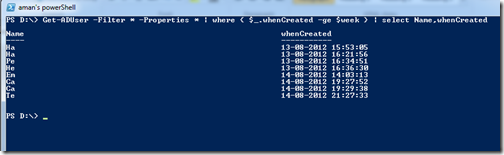
Good. Now our next step is to find users. Now we are going to use Get-ADUser , and then using -Filter * to search and find all users, and we are using -Properties * so that it expand all properties of the user, and then we are piping the output to where cmdlet and then are are choosing only those users from the output who’s $_.whenCreated property is greater then or Equal to $week.

Get-ADUser -Filter * -Properties * | where { $_.whenCreated -ge $week }


We have the output now., but lets format a more little bit.


16-08-2012 19-02-03


let add more one more pipe to the command, pipe it to select Cmdlet and choose to show only, Name and When Created Property.

Get-ADUser -Filter * -Properties * | where { $_.whenCreated -ge $week } | select Name,whenCreated

Not is looks nice isn’t ?


16-08-2012 19-15-39


Powershell Script for this.


To make this task more easy , i have create a powershell script which can do this task, and the script with export all the users Name, When created to a CSV file and save that on your Desktop.


You can download the script from this link : https://dl.dropbox.com/u/17858935/AD_Users_Created_WithIn_Predifined_Perios.zip 


Thanks

Aman Dhally

join aman on facebook Join aman on Linkedin follow aman on Twitter

Thursday, August 9, 2012

Powershell & Active Directory : “Find all users Email ID’s in Active Directory Using Powershell”.

Hi,

My todays task was to create a list of our all of our “Active Directory” users email Id’s. Normally you can do this easily using download your global address list of exchange server and export in to the file.

But remember Powershell is all about automation. Now imagine, your manager told you that every fortnightly he want’s a list of all users email id so that he can use it for sending some company wise “News”. I know you don’t want to so this manually after every 15 days. So why not to automate is and save some manual task, so that we can steal some time to spend on “Facebook”  ;o).

Okies, lets start , before running any cmdlets make sure you have RSAT tools installed.

The task is simple we can use Get-Aduser and and use –Filter * to find all users, and in –Properties choose Email Address to show and then pipe output to Select-Object cmdlet and choose to display Name and Email Address in the output.

Get-ADUser -Filter *  -Properties EmailAddress  | Select Name,EmailAddress 

Okies, we got what we want,,,,But wait,,, there are few users who don’t have any Email Address and i don’t want them in to my output file, let’s filter it more.


09-08-2012 19-30-52


I have added a one more cmdlet to the command , which is Where-Object , before Selecting the object we choose to show only those users whose Email Address files in not null.

Get-ADUser -Filter *  -Properties EmailAddress  | where { $_.EmailAddress -ne  $null }  | sort  | Select Name,EmailAddress

Now we can add Export-CSV cmdlet in to the End so that we have a output stored in to a .CSV file.

Get-ADUser -Filter *  -Properties EmailAddress  | where { $_.EmailAddress -ne  $null }  | sort  | Select Name,EmailAddress | Export-Csv D:\email_ID.txt

and the output file should be look perfect like this.


09-08-2012 19-38-59


Task finished….


and have a nice day and


Happy Janmashtami Everyone :o)


krishna_animated


Thanks


Aman Dhally


join aman on facebook Join aman on Linkedin follow aman on Twitter

Wednesday, July 18, 2012

Powershell and VMware: "Get the list of all Virtual machines on VMware VSphere Server using PowerCLI.


HI,

In my first post about "Getting Started with VMware Vshpere PowerCLI" i already showed how to connect with VMware server.

Our today's task is simple. you get the list of all Virtual machines, and then we search for all "Powered ON" machines and after that all "Power off" machines.

Nothing complicated here. this is just a simple task and again the basic usage of Powershell is applies here. and we have some good "best friend " cmdlets those always with us. these cmdlets are "where-Object", "Select-Object".

Let's Start

Connect to your VMware server first using Connect-VIServer cmdlet. Once you successfully connected.

Run the Get-VM cmdlet.

That will show you the list of all Virtual machines including their "Power State"

18-07-2012 13-01-59 

If you want to see all the properties of Virtual Machines, run the below cmdlet.

Get-VM | Format-List *

Now you can see that we have detailed information about virtual machines.

18-07-2012 13-06-21 

And in case you want to know about a single Virtual Machine , use Get-Vm  and -Name of the machine and then Piped it to fl *

Get-Vm -Name "Dummy-Windows7" | fl * 

18-07-2012 13-18-05 

As i mentioned in the starting that our original target is to find the list of all Up and Running Virtual machines. To achieve that we can use Where-Object and show that Virtual machines whose status is equal to "Powered ON".

Get-vm | where { $_.PowerState -eq "PoweredOn"}

18-07-2012 13-20-08 

Finally i got he list of all "Power ON " server and  i am happy now :)


Thanks for reading.

Thanks!

Aman Dhally

Buy-More-Twitter-Followers 4fb29548b6adc  linkedin