Hi,
Copy files and folders this is the task which every Admin or even a end user performs daily.
How we can Copy files and folder using PowerShell?
Quite Easy, we just need to use Copy-Item cmdlet with few Switch Parameters that all.
Cmdlet used : Copy-Item
:::: Copy Files
Lets create a a new folder to Backup files currently I have one Folder named “Folder_A” which contain Data and we will create a new folder named as “Backup_A” , and then copy data from “Folder_A” to “backup_A”

let create a new folder named “Backup_A”

Now we have two folders “Folder A” and “Backup_A”

now copy a file from “Folder_A” to “backup_A” ,
command is: Copy-Item D:\Demo\Folder_A\Book.txt -Destination D:\Demo\Backup_A
file successfully copied.

:::: Copy Txt file only
-Include
if we want to copy specific type of files only then we can use –Include switch Parameter followed by the type .
-Verbose
We can use –Verbose switch to see which files are getting copied
command: Copy-Item D:\Demo\Folder_A\* -Destination D:\Demo\Backup_A -Include *.txt –Verbose
see the screenshot, command copied the .Txt files only

:::: Exclude files to copying
-Exclude
If we are using Copy-Item cmdlet in a backup script it would be good we don’t backup Music,Video files on server. As a Ideal Policy we should not fill our SAN, Server storage with the backup of users music and videos.
to exclude these files to be copied use –Exclude switch parameter followed by file types example *.mp3,*.mp4 etc
in my Folder_A i have few MP3 audio and few MP4 video files, lets stop them copying to our Backup_A folder.

note: * means all
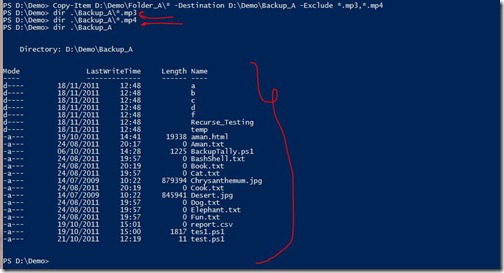
Command: Copy-Item D:\Demo\Folder_A\* -Destination D:\Demo\Backup_A -Exclude *.mp3,*.mp4
When i search for *mp3 and *mp4 no result were found and you can also see there is not a single MP3 and MP4 in “Backup_A” folder.
:::: Copy Folders
the command is same like copying file but rather then specify file we need to specify folder
Command : Copy-Item D:\Demo\Folder_A\Recurse_Testing -Destination D:\Demo\Backup_A\
Folder Copied

BUTTTTTTTT !!! wait…!!!!!!!!!!!!!
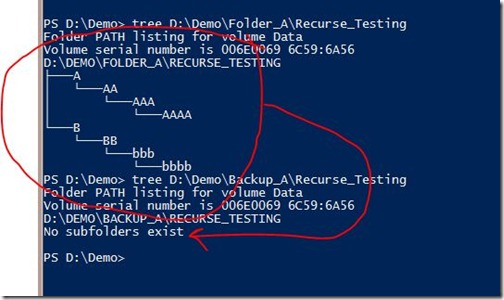
Check the folder again, Recurse_Testing have some Sub-folders which are not copied in backup_A
-Recurse
to Copy All folder including sub-folders use –Recurse while copying
Command is:
Copy-Item -Recurse D:\Demo\Folder_A\Recurse_Testing -Destination D:\Demo\Backup_A\ -Verbose

let check if it copied subfolder also.
Seems Identical isn’t.

:::: Copy all files and Folders
To copy all file and folder we use * wildcard which means all , and –Recurse to copy sub-directories also and we also use –force do that if there any file exists with same name on backup folder it should get overwrites.
command : Copy-Item -Recurse D:\Demo\Folder_A\* -Destination D:\Demo\Backup_A -Force –Verbose

lets check if these two folders are identical.
Seems like TWINS isn't ;-)

Hope it is useful to someone .
Thanks
Aman Dhally


